Other Tools
During my work on Temple Run 3, I built a suite of tools and editor extensions that supported both the game’s visual goals and its strict performance requirements. These tools helped artists iterate quickly, manage complexity across dozens of biomes, and keep the game running smoothly on a wide range of mobile devices. This page highlights a few of the smaller systems I created to streamline production and maintain visual quality without sacrificing frame rate.
What Did I Do: C# code, optimization, tools documentation & knowledge transfer
Shader Variant Tracker
This tool was built to solve a very specific performance problem: untracked shader variants causing runtime hitches. The game loads shader variants through a proprietary warm‑up system at app start, but that system only works if every required variant is already known. Any variant that slips through — a new keyword combination, a UI material, a URP‑injected keyword — forces Unity to compile it on the fly, which shows up as a visible hitch, pop, or loading artifact on device.
The Shader Variant Tracker runs in the Editor during Play Mode and watches every material being rendered. It merges local and global keywords, detects the actual pass type, and records any variant that isn’t already in the project’s ShaderVariantCollection. Each detection includes the shader, keywords, pass type, and the full scene path of the object that triggered it, making it easy to track down where the variant came from.
From the inspector, the user filtered, selected, and added variants directly into the reference ShaderVariantCollection with one click. Once all variants are captured and stored, the runtime build no longer compiles anything on device — eliminating shader‑related hitches entirely.
Besides the tool itself being a major quality of life feature for managing shader variants, the tool had several user facing features to help artists track down other shader issues. Each entry displayed what specific object the variant came from — was it a mesh, UI? — with a button to jump to that asset in the project. This aided tremendously in tracking down and removing old, deprecated shaders, or finding where a placeholder file was missed. The tracker also displayed the keywords of the shader variant, which allowed me to see whether or not a shader had an overabundance of keywords, or keywords it shouldn’t use.
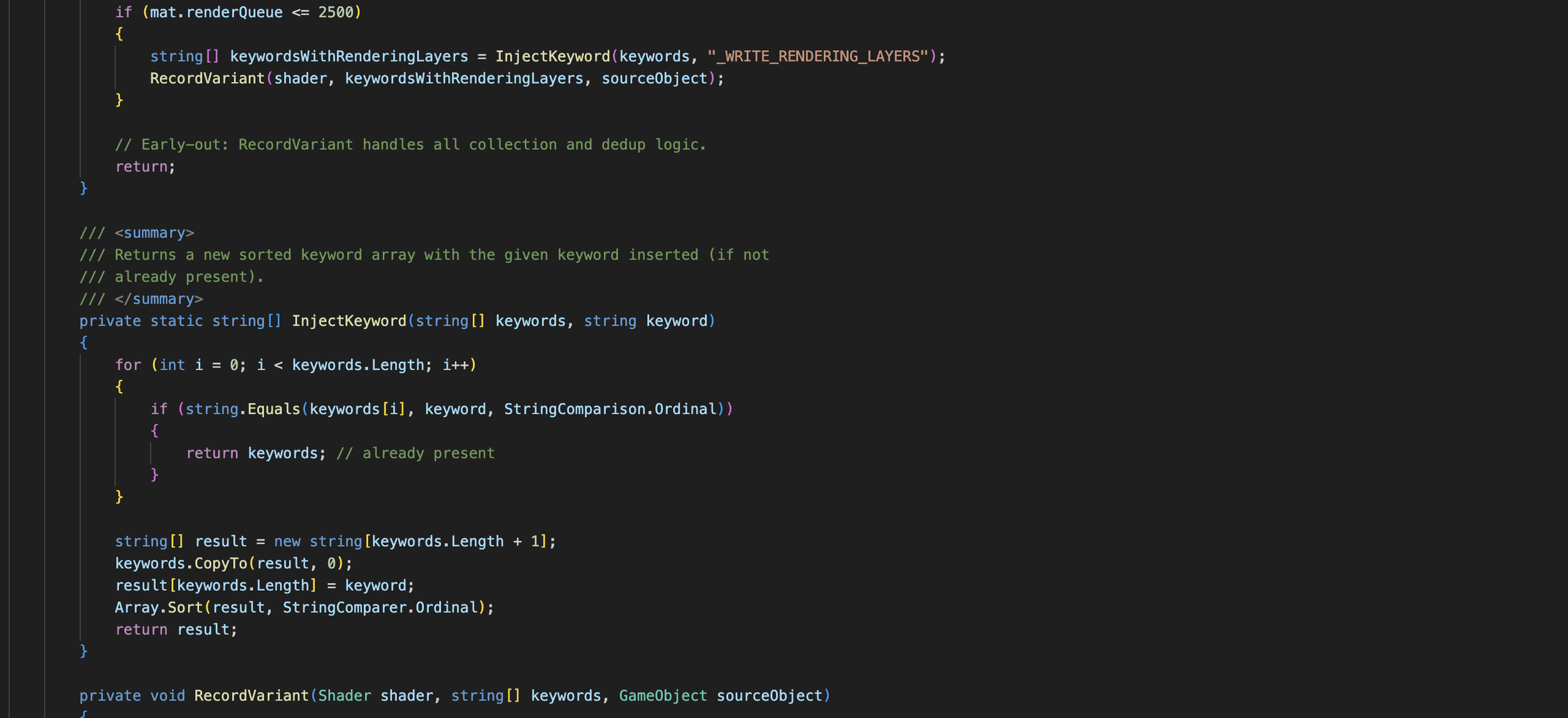
The tracker doesn’t just list keywords — it merges local and global keyword states, injects URP’s hidden _WRITE_RENDERING_LAYERS keyword where needed, and records the exact scene object that triggered each variant. This ensures the real, live variants used on device were captured, not just the ones Unity exposes through the public API.
Quality-based Selective Object Toggling
Rendering performance is one of the biggest constraints in a mobile endless runner — especially in Temple Run 3, where we targeted and achieved 60 FPS on mid/high‑end devices and 30 FPS on all low‑end devices. To help artists manage scene complexity without manually maintaining multiple prefab variants, I built a system that selectively disables game objects based on the user’s assigned graphics level.
Each object can use the global quality settings or define its own overrides. The component applies quality rules in OnEnable, which ensures correct behavior even when objects are spawned from pools. An accompanying editor tool lets artists click objects directly in the Scene View to add/remove them, preview quality levels, and view triangle/overdraw stats before making decisions.
The editor tool included several preview and debugging features. In edit mode, any target objects are highlighted with a red material, while objects already managed by another toggle component are shown in yellow to help artists avoid overriding existing settings. The Stats panel displays the triangle count for the root object, how many triangles are saved through quality toggles, and the number of active and inactive transparent objects (including VFX and any non‑opaque shaders).
One major issue I wanted to avoid was the cost of frequent SetActive calls, which were especially expensive on low‑end devices. To work around this, any prefab containing the component saves its visibility state in the lowest quality configuration when the prefab is saved. When the prefab is opened again — either directly or as part of the track preview — the tool restores the original visibility state in the editor. This ensures that low‑end devices instantiate objects in their already‑correct, pre‑disabled state, eliminating runtime toggling entirely. The cost of applying quality changes is instead shifted to mid‑ and high‑end devices, where the state changes have no measurable performance impact.