Environment Shader Breakdown
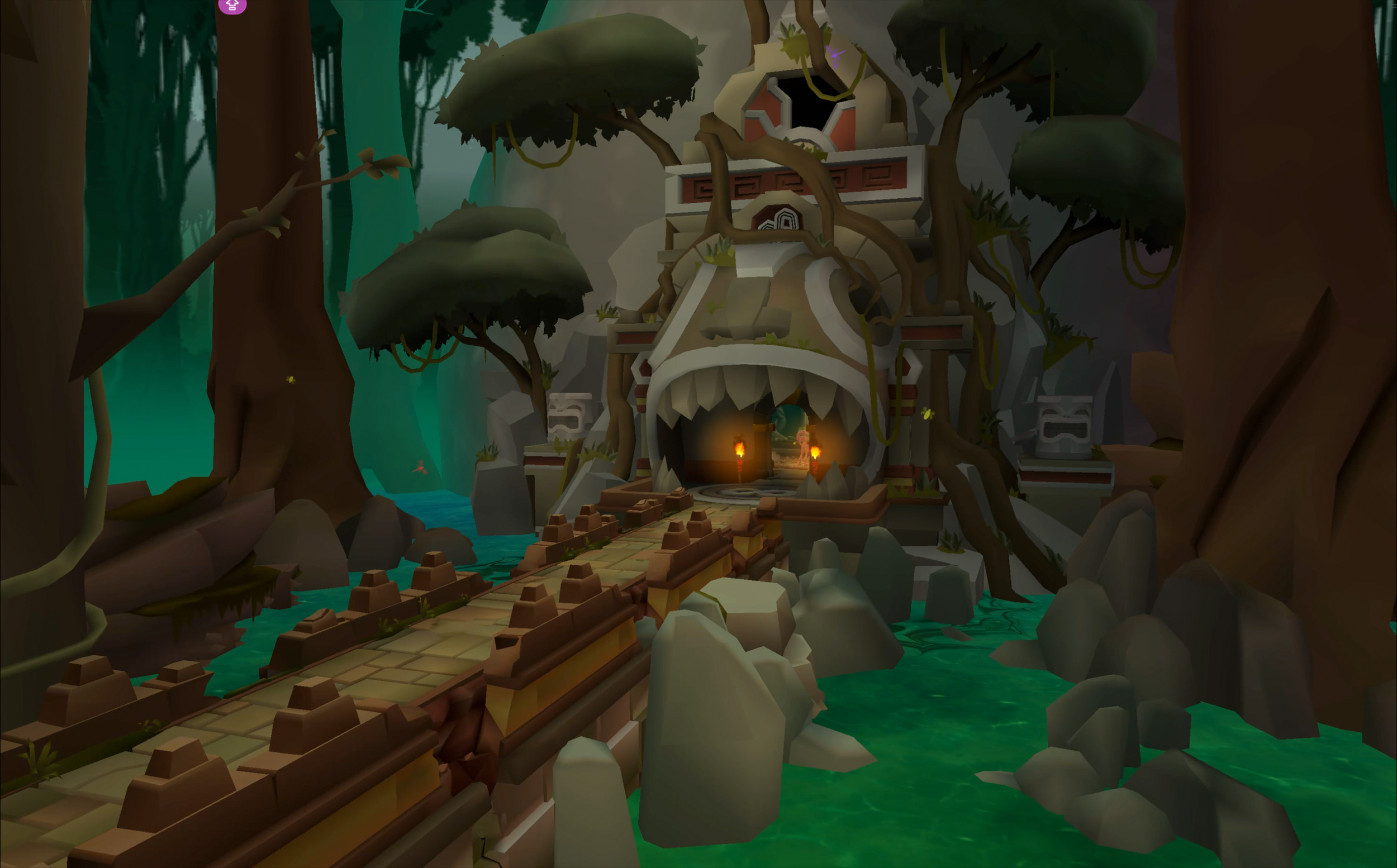
The environment shader for Temple Run: Legends and Temple Run 3 was an unlit, opaque shader built to support fast‑moving gameplay, a curved world, and a wide range of biome themes without sacrificing performance on mobile hardware. The graph is structured as a set of modular blocks — world‑curve deformation, stylized lighting, detail projection, fog and VFX mixing, skybox fading, and near‑camera dithering — each handling a specific part of the final look.
The goal of this shader isn’t realism; it’s clarity, consistency, and scalability. Every section is lightweight, predictable, and easy to tune across dozens of environments, while still giving artists enough control when combined with the Day/Night System to define distinct moods and lighting styles for each biome.
What Did I Do: Environment Blockout, All Shader Creation, Lighting, VFX
What I Didn’t Do: Final Environment Art, Characters
Overview
This environment shader used by Temple Run 3 and Temple Run: Legends is an unlit, opaque material designed to support stylized rendering across large‑scale levels while remaining performant on mobile hardware. The graph is organized into modular blocks that handle world curvature, lighting approximation, detail enhancement, fog integration, and VFX blending. This page breaks down how each of these components functions and contributes to the final look.
The shader has several major comonents:
The World Curve node applies a vertex‑offset deformation to simulate horizon curvature without additional geometry.
Lighting is approximated through a combination of Main Light evaluation for directional toon shading, Shadow Fade by Distance for darkening the sides and far distance,
Surface variation is added through RGBA Detail Masking which tiles larger details across multiple small-surface objects and a faked ‘Light Cookie’ that mimics tree shadows and light caustics.
Atmospheric effects are handled through Fresnel, Fog mixing, and VFX tinting.
Distant objects fade into the skybox using a custom render texture, and near objects dither based on object position.
The result is a single, unified unlit shader that handles curvature, lighting, detail, and atmospheric blending. This ensured consistent visuals across all environments while keeping the material lightweight, low-end mobile-friendly, and easy to iterate on. It is also the basis for the character shader, which adds additional detail nodes.
World Curve Subgraph
Once a vertex is far enough out, the CurveSettings property begins to shift the vertices from their position. The graph uses the squared distance from the curve start to generate a smooth horizontal and vertical bend, and then applies the falloff, and scales the result by the curve strength. The branch is evaluated in the vertex stage and only determines whether curvature should be applied, so it has no meaningful performance impact on mobile hardware. After the offset is calculated, it’s transformed back into object space and combined with the original vertex position. The subgraph also outputs a matching shadow‑caster position so shadows (when enabled) follow the same curvature, along with an additional World-space vector3 for any shader that needs it.
The end result is a relatively lightweight deformation that gives the environment its curved‑horizon look without extra geometry or expensive world‑space operations.
In Temple Run 2, the player followed a series of path nodes and physically moved through the world. Any curving track piece was modeled with the curve, and while this allowed for very customizable, unique tracks, it also meant a lot of additional work creating those curved meshes and tweaking their values so the camera movements were smooth.
For Temple Run: Legends and Temple Run 3, the Track System comprised of primarily straight, flat track pieces, with the occasional 90° curve or junction. This meant bringing curves back into the track required either a spline-based system for manipulating segment blueprints, or a lightweight shader node that would handle the effect. I opted to start with the latter as there were far fewer variables to consider, and I love a simple solution that can be expanded.
To curve the world, I first set a global vector3 property named CurveSettings. The values for the curve are driven by the World Curve Extension. Taking these values, I measure how far each vertex is from the camera along the Z-axis, then check whether it’s past the point where curvature should begin. Anything too close to the camera is left untouched to avoid visible distortion and for player comfort.
World Curve Extension
The animation for the World Curve is achieved by driving vertex deformation with an extension to the Track System. This extension sets a global vector 3 name ‘CurveSettings’ to store values for the horizontal offset (x), the vertical offset (y), and the curve start distance (z).
This extension allows anyone on the project to rapidly configure custom curvature values per track theme. For example, when running in the Temple Exterior zone where the temple appears on the left side of the track, the curve is configured to favor turning right, while in its mirrored theme the curve will favor turning left. Some themes may have very subtle curves, while others twist and turn, and others curve up rather than down.
I drive the values for the curves by using Unity’s built-in animation curves. This allows for complex curve setups with variable durations to prevent repetition and creation more visual variation. When the Track System transitions from one theme to another, the extension handles smoothly blending the animation curves to prevent jitters or pops.
While I cannot share the entire script on this page, here are several code snippets to explain the curve transitions.
First, the system evaluates the active curve and write the values to the shader.
float normalizedTime = Mathf.Repeat(_curveAnimTime / _CurrentCurveDuration, 1f);
float horizontal = _CurrentHorizontalCurve.Evaluate(normalizedTime) * MaxHorizontal;
float vertical = _CurrentVerticalCurve.Evaluate(normalizedTime) * MaxVertical;
Shader.SetGlobalVector(_curvePropertyID, new Vector4(horizontal, vertical));
When transitioning between themes, the system snapshots the current curve value to create a steady curve to blend from.
    private AnimationCurve CreateSnapshotCurve(AnimationCurve sourceCurve, float currentTime, float duration)
    {
        float normalizedTime = Mathf.Repeat(currentTime / duration, 1f);
        float value = sourceCurve.Evaluate(normalizedTime);

        // Create flat curve with constant value to avoid wild oscillations
        AnimationCurve snapshot = new AnimationCurve();
        snapshot.AddKey(0f, value);
        snapshot.AddKey(1f, value);

        return snapshot;
    }
During theme transitions, the values interpolate between from the snapshot value and the new target curve. This ensures that the curve changes smoothly over times, even if the target curves have different shapes or durations.
float t = Mathf.Clamp01(_TransitionProgress / _CurrentTransitionTime);
float blendedHorizontal = Mathf.Lerp(snapshotHorizontal, targetHorizontal, t);
float blendedVertical = Mathf.Lerp(snapshotVertical, targetVertical, t);
When the target theme becomes active, the curve manager swaps the appropriate curves and starts the transition.
TransitionToCurves(targetHorizontalCurve, targetVerticalCurve,
                   targetDuration, transitionTime);
Main Light & Shadow
The Main Light subgraph handles all of the directional‑light shaping for the environment. Since the shader is unlit and opaque, this block recreates the lighting response manually. The structure is based on the toon‑lighting approach outlined by Cyanilux, but adapted for the project’s needs and optimized further.
The subgraph starts by sampling the direction and color of Unity’s main directional light. That information is combined with a ramp‑based shadow calculation to create a stylized 2-step light/shadow split. The ramps are controlled by floats to control the shadow edge and softness.
From there, the lighting is shaped through a set of color‑mix operations. The light color, shadow color, and ambient tint are blended together to create the final look. The mix amount controls how strongly the main light and shadow color influences the final output to configure the contrast per biome.
The Shadow Fade by Distance block creates an oblong mask around the player that gradually reduces light intensity as objects move farther away. It measures how far each vertex is from the camera, normalizes that distance, and shapes it into a smooth falloff curve using Inverse Lerp and a few basic math nodes.
That factor is then used to blend between the normal shadow value and a lighter version of it. This keeps objects to the side or in the far distance darker, while focusing lighting in the area directly around the player. This keeps the unplayable area from becoming too noisy by preventing it from reaching the same brightness as important gameplay objects.
The output feeds directly into the toon‑light calculation, blending the shadow mask and the toon ramps before their before the final light/shadow mix. The result is a consistent, stylized shadow response that works cleanly within an unlit pipeline. While this shader includes functionality to use dynamic shadows, I opted for using faked lighting where possible as a performance-enhancing solution.
Detail
Triplanar Detail
Many of the flat surfaces in Temple Run: Legends and Temple Run 3 were not large enough to display tiling textures without visible tiling or repetition. The solution was to have a maskable triplanar detail texture to add large-scale variation into the surfaces to make them appear like a single, uniform surface.
First, I take the vertex position and use it to create triplanar noise using a separate RGBA detail texture. This noise is added to the triplanar detail’s position so that it happens before any masking. The setup of the detail texture section is similar to my RGBA Mask Node setup, with the exception that the masks are a combination of the triplanar direction and the channels from a RGBA mask texture. An additional mask is used to ensure only the desired areas of the object are given details. Finally, this section is run through a keyword boolean to toggle it on or off.
The result is a subtle layer of variation that obeys the world curve and allows surfaces to appear larger than they actually are.
Vector-driven ‘Light Cookie’
This section fakes a directional‑light cookie to create the sense of dappled lights or shimmering caustics. First, the vertex position is used as part of a triplanar node which wraps the texture around the object. Then it takes the normal vector and multiplies each channel by a vector3 to create a directional mask, which subtracts from the triplanar detail. It is colorized and then blended with the rest of the shader.
Fresnel, Ambient, VFX Tint, & Fog
This part of the shader handles a few lightweight effects that help the environment read cleanly under different lighting conditions.
Adding ambient color allows for global color tinting. For tinting objects with a VFX system, an additional color parameter is fed into a Lerp with its alpha controlling the opacity.
The Fresnel section adds a subtle rim highlight based on view angle. This helps object silhouettes, but is especially useful on obstacles or enemies who are given a red highlight to indicate danger.
Fog is mixed in using the colors and distance values set within a Lighting Preset, part of the Day/Night System.
Fade Into Skybox
To prevent objects from having hard edges when they reach the camera clipping distance, the shader gradually blends them into the skybox. Temple Run 2 handled this by using a transparent shader on far-distant objects and swapping them to an opaque shader once they faded in. For Temple Run 3, this was not a performant option because of how many objects comprise the environment and how the track was built.
Instead, a secondary camera renders the skybox into a custom render texture, and that texture is sampled directly in the shader. This gives the shader access to the exact background color behind each pixel.
The graph calculates the object’s distance from the camera, normalizes it, and shapes it into a fade factor. That factor drives a Lerp between the object’s final shaded color and the sampled skybox color. Because the UVs come from the screen‑space position, the fade aligns with what the player sees.
This approach avoids the cost of rendering excessive transparency sorting or draw calls because the environment remains opaque at all times.
Distance-based Dither Fade
When objects are close to the camera, they can prevent the player from seeing what is ahead of them on the track. This isn’t limited to obstacles covering other obstacles; hanging vines, statues, and other things that make the environment feel like a living place can all interfere with the camera, hiding danger or bonuses the player should be able to see.
The graph starts by taking the world‑space position of the object and the camera, then measuring the distance between them. The key idea is that the fade is driven by object distance, not pixel distance, so the effect stays stable even when the camera moves or the object fills more or less of the screen.
That distance is passed through a Remap node to convert it into a normalized 0–1 range, representing how close the object is to the fade window. The Start and End values represent the distance from the camera the object is fully opaque and begins to dither and the distance where the object is fully transparent. For obstacles, the start value is set so the fade begins after the character passes the obstacle and the end distance is set to occur before the object reaches the camera.
Once the fade factor is computed, it is connected to a built-in Dither node. The dithering pattern is sampled in screen space, but the fade threshold comes from world distance, so the effect feels consistent and doesn’t shimmer as the camera moves. I included a Custom Function to make the pattern scale consistent based on screen size. Finally, a branch node is used to clamp or bypass the Dither node entirely, which results in smooth fading without the dither pattern.
Additional Credits:
Ravegan - Art, shader support
Cyanilux - For awesome shader tutorials